
To share a watchlist with friends, first decide what you want to do: show them a list or build it together? If you just want to recommend ten movies, a link in the group chat is enough. But if the list is meant to be a shared space for you and your partner, your Friday-night crew, or the office film club, you need a list everyone can add titles to. This guide explains the difference, what to look for when choosing a tool, and how to do it on PopcornCrew.
In a nutshell
- Sharing isn’t collaborating: a link lets people view a list; collaboration lets friends add titles.
- Your PopcornCrew Watchlist is yours: to make a group list, create a separate list that can be public (anyone can open it with a link) and have collaborators.
- Everyone tracks their own viewing progress: on the same list, each person sees what they’ve watched, and TV shows are tracked by episode.
- A list isn’t a streaming service: before movie night, you’ll need to know where each title is available and who has the right subscription. The “Our Services” filter does that for you.
- It’s free, with no credit card required, on iPhone, Android, and the web.
Sharing or collaborating: the difference that matters
When people look up how to share a watchlist, they’re usually looking for a “Share” button. But that button can do two very different things, and knowing which one you need can save you from choosing the wrong tool.
Read-only sharing works like a display case. You make a list, send the link on WhatsApp or by email, and anyone who opens it can see the titles but can’t change them. It’s ideal for recommendations, rankings, or film series. The catch with many apps is that anyone who wants to add something has to make their own copy—and from then on, the two lists are separate.
A collaborative list is different: it’s one list shared by several people. Everyone can add titles, and there’s just one version for the whole group. This is what you need when the question isn’t “What movie should I recommend?” but “What should we watch tonight, together?”
- Who can add titles: only the creator can add to a read-only list; everyone invited can add to a collaborative one.
- What each type is good for: read-only lists work well for recommendations, rankings, and film series; collaborative lists are great for couples, friend groups, and film clubs.
- The usual pitfall: with read-only lists, you end up with copies that don’t sync; with collaborative lists, the list can grow endlessly without any structure.
- What to check in the app: for read-only lists, whether people need an account to open the link; for collaborative lists, who can remove titles and whether you can see who added each one.
Neither option is better in every situation. “20 Horror Movies to Watch at Halloween” works perfectly well as a read-only list; “Shows for Giulia and me to watch” only makes sense if both of you can add to it. And a list can be both: created by a few people, then shared with everyone else to view.
What a group watchlist really needs
Your personal watchlist can be a mess if you like—you're the only one using it. A shared list, on the other hand, needs to work for people with different tastes, schedules, and subscriptions. Here’s what to look for in a tool.
Keep track of who’s watched what
After a month, a group list can easily turn into 80 titles, half of which someone has already watched, with nobody remembering which ones. You need a way to see who’s watched each title. A single “watched” status for the whole list isn’t enough: just because you’ve seen it doesn’t mean Giulia has.
Track episodes, not just shows
For movies, marking something “watched” is enough. For TV shows, it isn’t. If you’re watching an eight-episode series as a couple and one of you gets ahead, spoilers are just around the corner. Tracking the episode—not just the show—makes it clear where to pick up and who’s further along. It also makes it much easier to get back into a series you dropped halfway through months ago.
Accounts and access
Think about who needs to sign up. Usually, anyone can view a list with a link, while editing requires an account so the app knows who added what. That’s not a drawback, but if someone in the group doesn’t want to install anything, it’s worth knowing upfront.
Editing permissions
Check who can add and remove titles. A sensible rule is that everyone can remove the titles they added, while only the list creator can clean up the whole list. Otherwise, the first person who gets tired of a title can delete it for everyone.
Where each title is available
Streaming availability is separate from the list itself. A title might be on a service nobody in the group has, or leave the catalog the following month. And if a friend lives abroad, they may see a different catalog from yours.
A place to say why
A list of titles tells you “what,” not “why.” A quick note (“I’m suggesting this because it’s only 95 minutes”) helps the group decide faster than any poster.
How to share a watchlist on PopcornCrew
First, a quick note so you don’t waste time: your Watchlist and Watched lists on PopcornCrew are private to you. The app updates them automatically when you mark a title, and they can’t be made public or edited with other people. For a group, create a personal list instead—you can make it public and build it together. Here’s how, from adding the first title to planning movie night.
- Create an account. It’s free, with no credit card or subscription required. Use the app on iPhone or Android, or open it in your browser.
- Create a new list. Go to Lists and tap “New List.” Give it a name that makes its purpose clear: “Friday with the team,” “Shows to finish together,” or “Oscar Watchlist.” A specific name helps keep the list focused.
- Add titles. Movies and TV shows can go on the same list. Search from within the list, or open a title’s page and tap “Add to List.” If your Watchlist already has something that would work for the group, start there.
- To let people view it, make it public. A public list has its own page, and the “Share” button gives you two options: send the link in a chat (anyone can open it, even without an account) or share an image of the list to your Stories, with the link copied to your clipboard so you can add it as a sticker. A private list is only visible to you and its collaborators, even if the link gets shared around.
- To build it together, invite collaborators. Open “Members & Invites” from the list, find your friends among registered users, and tap “Invite.” They’ll get a notification, and once they accept, the list will appear under “Shared with You.” The list can stay private: collaborating doesn’t mean making it public.
- Mark what you’ve watched. Everyone can mark movies they’ve seen and, for TV shows, the episodes they’ve watched. Titles stay on the list, but each person sees their own viewing status on the poster.
- Tidy up the list every so often. Remove anything nobody’s interested in anymore. A 15-title list takes two minutes to choose from; a 150-title list takes half an hour.
Anyone you invite needs an account: for now, there’s no invite link for people who haven’t signed up yet. If a friend isn’t on PopcornCrew, send them the public list link first, then invite them once they’ve registered.
What collaborators can do
- Add movies and TV shows, and remove the titles they added. The list creator can remove any title.
- See who added each title: on lists with collaborators, their name appears next to the title.
- Use the “Our Services” filter: it only shows titles available on streaming services everyone in the group has—that is, the services each person has added in their settings. You’ll also find filters for genre, streaming service, rating, and year, plus runtime for movies and viewing progress for TV shows.
The list name, description, visibility, and invites are still managed by the person who created it.
Three ways to use a shared list
The same feature can solve different problems. Start with the problem you’re trying to solve, and it’ll be easier to set up the list the right way.
For couples: one list, two different paces
This is the most common use case. A collaborative list becomes the place for all those “we should watch that” comments over dinner. TV shows are the tricky part: if you both mark your episodes, the person who watches one alone during the week can say so, and the other knows what to avoid on social media. One rule that works well: whoever adds a title tells the other why.
Before you even make a list, there’s a shortcut: on a friend’s profile, the “In Common” section shows movies you both have on your Watchlists and ones you’ve both watched. Your first movie night might already be sorted.
For friend groups: suggest, filter, decide
With four or five people, the problem isn’t finding titles—it’s choosing one. A collaborative list works well with one simple limit: everyone can suggest up to three titles a week. Before movie night, turn on “Our Services,” rule out anything someone’s already seen, and pick from what’s left. If you can’t agree, drawing titles from a hat works just fine. Or the list creator can rank them with head-to-head matchups: PopcornCrew shows you two titles at a time, you pick the one you prefer, and the top-ranked movie becomes your pick for the night.
For film clubs, retrospectives, and awards season
These lists are usually read-only: the organizer puts together the program, and everyone else checks it out. Make the list public and share the link. Anyone who wants to can follow it and get a notification when it’s updated, and there’s a space for comments below the list. It’s a great format for a themed series or catching up on awards contenders. For example, you could start with our complete guide to the 50 films nominated for the 2026 Oscars and turn it into a list to work through together. If your group prefers the big screen, the October 2026 movie releases, week by week are a great starting point for a “movies to see in theaters” list.
What kind of tool should you choose?
There are different kinds of tools for sharing a watchlist, and they don’t all do the same thing. Comparing them by type is more useful than any ranking.
- Tracking apps with social features, like PopcornCrew. The upside: shared and collaborative lists, episode tracking, profiles, and comments. The downside: your friends need to use the same app to collaborate.
- Streaming availability aggregators. The upside: they tell you which service has a title. The downside: when they offer lists that multiple people can edit, that feature is sometimes only available on a paid plan.
- Apps designed just for group decisions. The upside: quick ways to choose, like random draws. The downside: they don’t track what you’ve watched.
- Built-in lists on streaming platforms. The upside: they’re already where you watch. The downside: they only work with one service and are tied to an individual profile.
- Shared notes or spreadsheets. The upside: they’re flexible and everyone knows how to use them. The downside: no viewing status, no episode tracking, and no posters.
A shared spreadsheet is the most common fallback, and it works perfectly well for a film series that doesn’t change. The trouble starts with TV shows: manually tracking episodes and seasons for four people is a chore nobody wants to keep up for more than two weeks. Built-in streaming lists have the opposite problem: they’re accurate but locked to one service, and groups rarely all have the same subscriptions.
From list to movie night: what to check before you press play
A shared list answers “What should we watch?” It doesn’t answer “How are we going to watch it?” Before movie night, especially if you’re watching remotely, check three things.
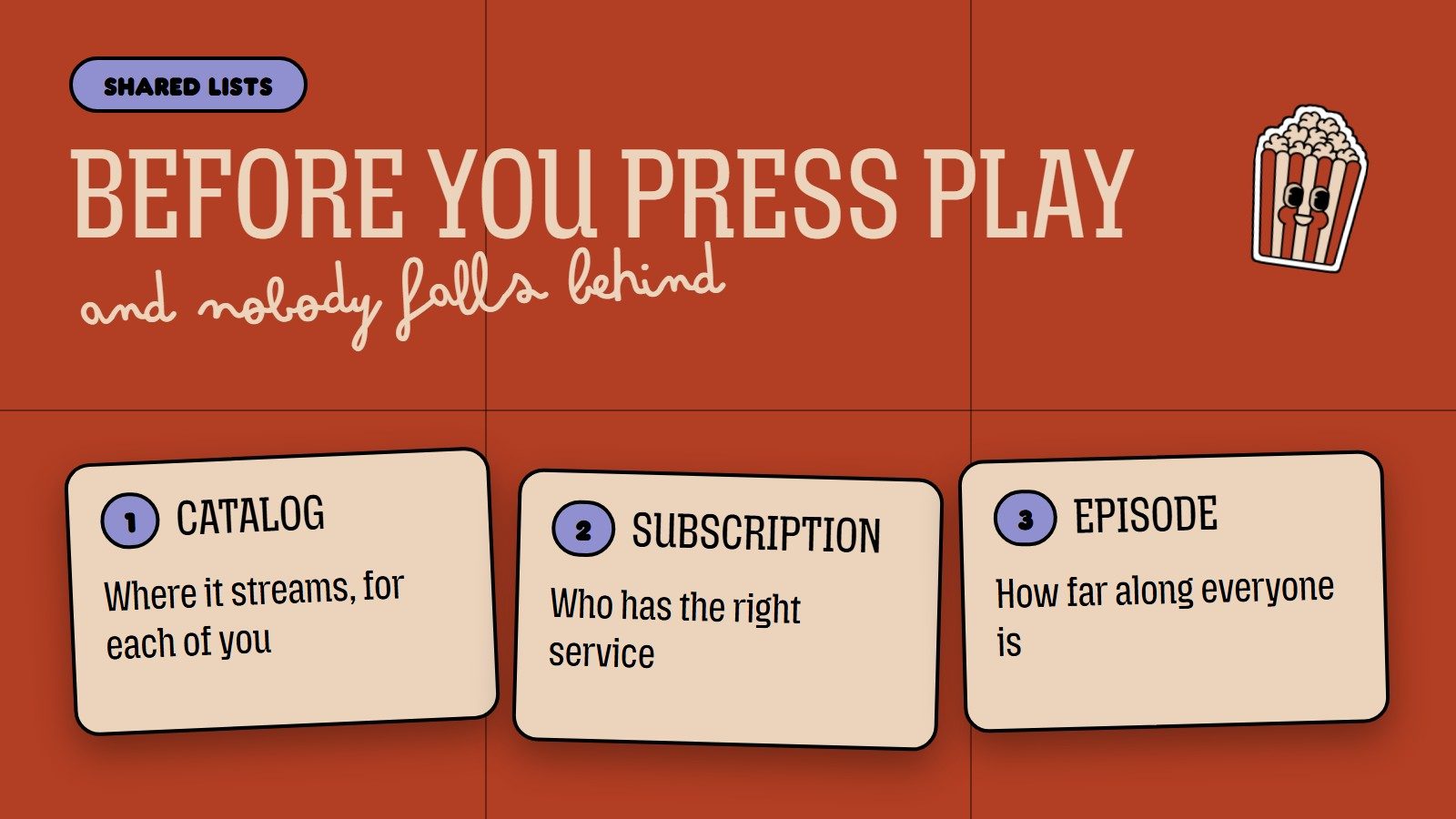
Availability. A title on your list isn’t automatically available to stream. On PopcornCrew, each title’s page shows where it’s available in your country, and friends abroad see their own local catalog. If someone’s outside your country, ask them to check the title on their phone.
Subscriptions. Who has the right streaming service? The “Our Services” filter answers that for you, as long as everyone has added their services. If nothing’s available to everyone, take turns: this week, pick something on Service A; next week, choose from Service B.
Where to pick up. For TV shows, check which episode everyone’s on. That’s why episode tracking matters: it stops you from starting on the wrong episode or spoiling a twist for someone who’s behind.
And when it comes to titles on your personal Watchlist, we’ve got you covered: if you’ve added your subscriptions in settings, we’ll let you know when a title becomes available on one of them—and a week before it leaves.
Switching from another tracking app?
Many people searching for how to share a watchlist are really looking for a new home for their lists after a service they’ve used for years shuts down. If that’s you, we’ve put together a guide on moving your data to an Italian alternative and another on what to do if the service has shut down, whether or not you exported your data. You can also import from Letterboxd, IMDb, and Rate Your Music. Rebuilding your viewing history before inviting friends makes the shared list useful right away—no one will recommend a show you’ve already finished.
Our take
We built PopcornCrew around a simple observation: the everyday problem isn’t rating a movie. It’s remembering what you were watching, which episode you’d reached, and what a friend recommended three weeks ago. The rating comes later.
For us, sharing comes after getting organized. A shared list only works if everyone keeps their viewing status up to date; otherwise, it becomes a list of good intentions. That’s why everyone sees their own viewing progress on our lists, episode by episode, and why we added comments below lists: one recommendation with a sentence explaining why is worth more than ten posters.
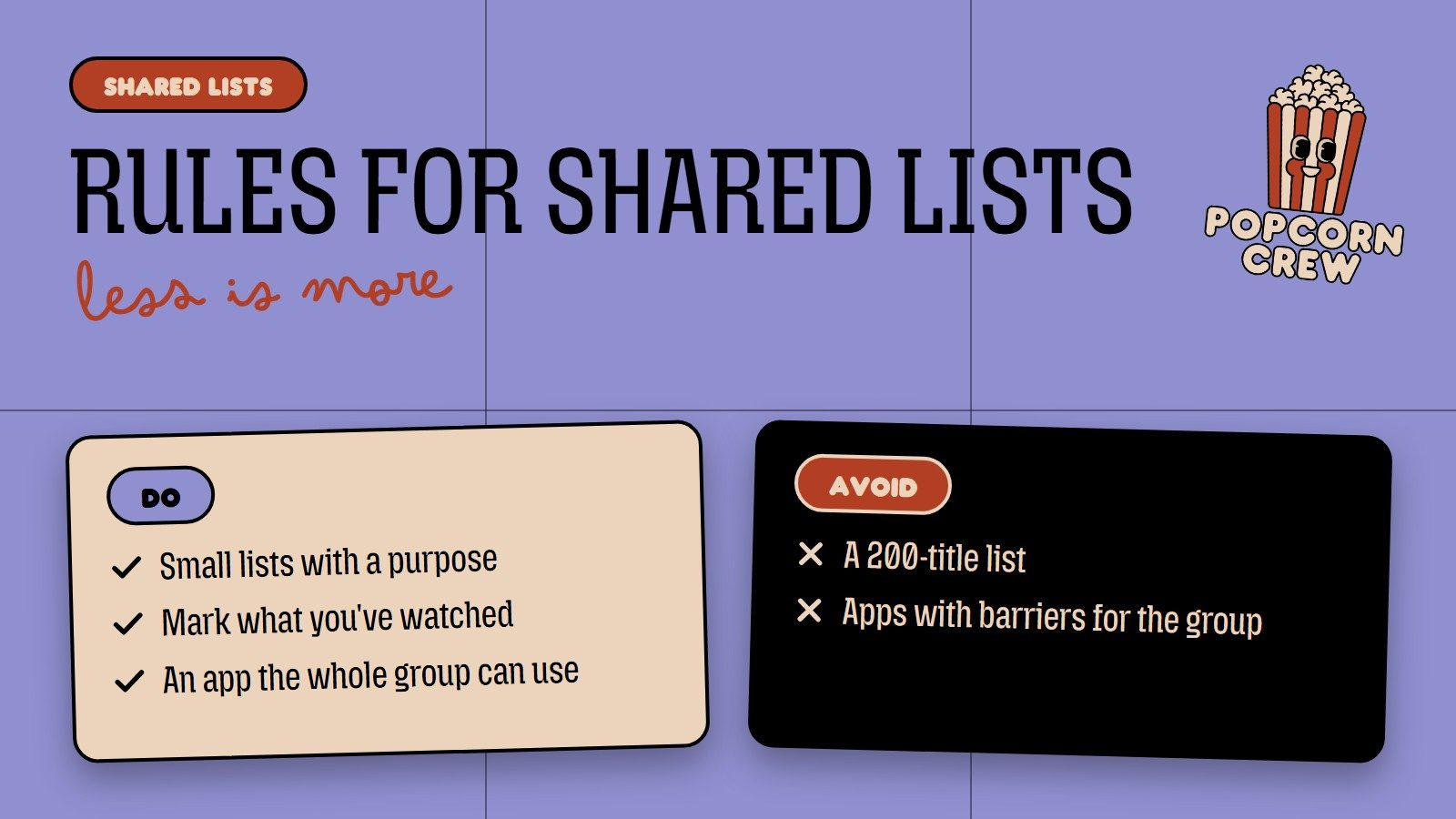
Our practical advice: keep lists small and give each one a clear purpose. Three lists of 15 titles (“short watches,” “shows to finish,” “for when we have time”) are better than one list of 200. And choose an app your group will actually use, without any barriers. For us, that means it’s free, requires no credit card, and works on your phone and in a browser.
Frequently asked questions
Can I share my PopcornCrew Watchlist?
No. Your Watchlist can’t be made public because the app updates it automatically when you mark titles as watched. Instead, create a personal list for your friends—you can make it public and build it together. To see what you have in common, visit a friend’s profile and open “In Common” to see movies you both have on your Watchlists.
How do I create a shared movie list with friends?
Create a new list, add titles, and invite friends from “Members & Invites.” Once they accept, they can add movies and TV shows. If you only want them to view the list, make it public and send the link using the “Share” button.
Can anyone with the link to my list edit it?
No. The link to a public list lets people view it, and it opens even without an account. To edit the list, they need to be invited as collaborators, which requires an account.
Can we watch movies together using a shared watchlist?
No. A list helps you choose and organize what to watch; it doesn’t play anything. You’ll need access to the streaming service that has the title, and availability varies by country. Use the list to decide, then check where everyone can watch the movie.
How much does it cost to share a list on PopcornCrew?
Nothing. PopcornCrew is free, requires no credit card or subscription, and works on iPhone, Android, and in your browser. Lists, collaborators, sharing, and episode tracking are all included.
Create your account and your first shared list—it only takes a minute.